
Subtotal ₨ 0
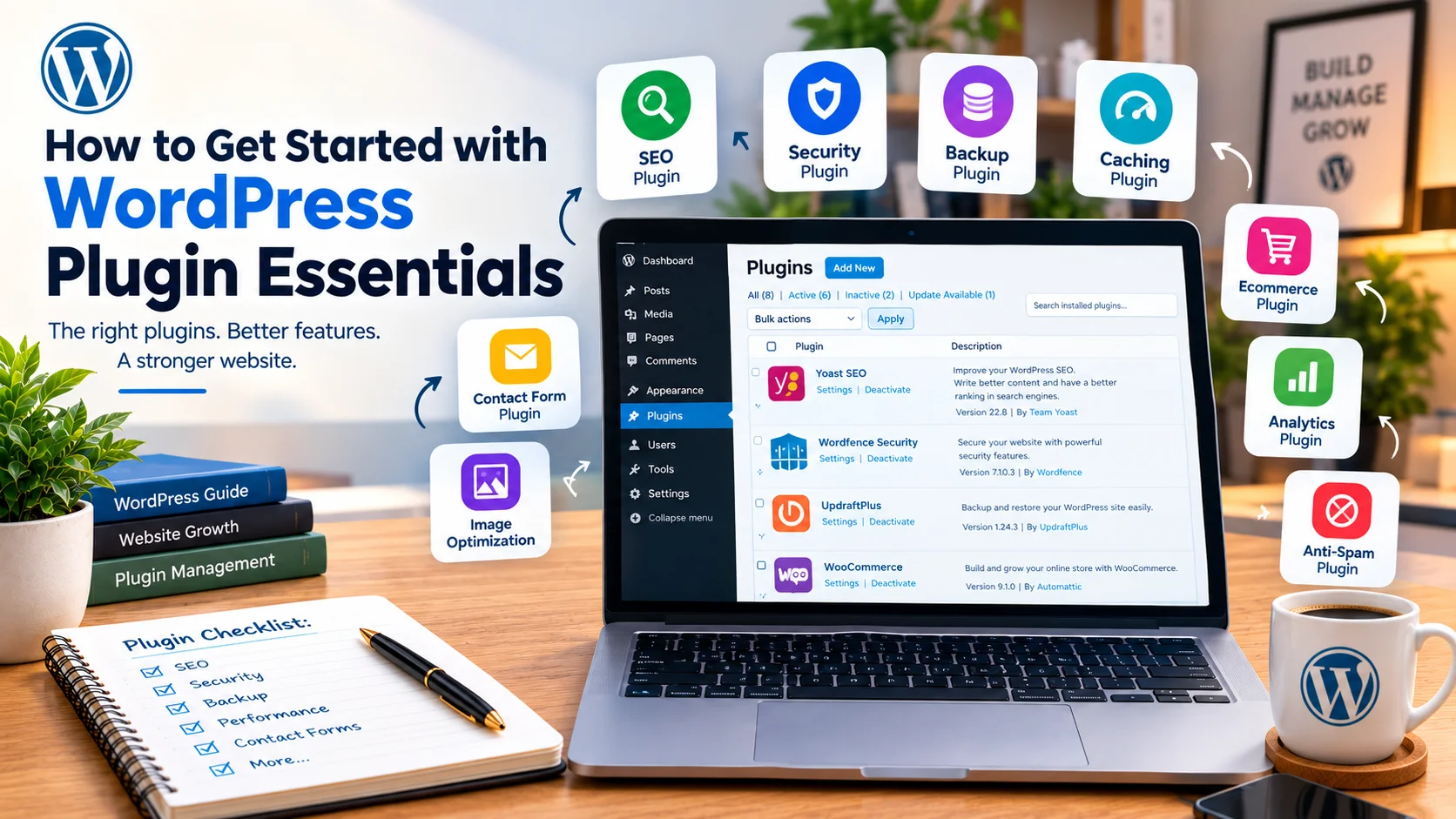
Getting started with WordPress Plugin Essentials is one of the first things beginners should understand when building a professional WordPress website. Plugins allow you to add useful features without developing every function from scratch. Whether you need better search engine optimization, website security, automatic backups, contact forms, caching, analytics, image optimization, or ecommerce functionality, the right WordPress plugins can make your website more useful and easier to manage.
However, installing plugins is not simply about adding as many features as possible. A website with too many unnecessary plugins can become difficult to maintain and may experience compatibility, security, or performance issues. A better approach is to understand what your website actually needs and then select reliable plugins that solve specific problems.
In this guide, we will explain the WordPress Plugin Essentials every website owner should understand, how plugins work, which types of plugins are commonly needed, how to install and configure them, and what you should consider for security, performance, compatibility, updates, and long-term WordPress website maintenance.
What Are WordPress Plugin Essentials?
Before installing anything, it is important to understand what WordPress Plugin Essentials actually means.
A WordPress plugin is a piece of software that adds specific functionality to a WordPress website. WordPress provides the basic platform for creating and managing your website, while plugins allow you to extend its capabilities without manually coding every feature.
For example, a basic WordPress installation may not provide all the tools you need for a professional business website. You might want to add a contact form, improve your SEO settings, create automatic backups, protect your website against suspicious activity, improve page speed, connect analytics, or add ecommerce functionality.
Plugins can provide these additional features.
Common WordPress plugin categories include:
- SEO plugins
- Security plugins
- Backup plugins
- Caching plugins
- Contact form plugins
- Image optimization plugins
- Analytics integrations
- Ecommerce plugins
- Anti-spam plugins
- Membership plugins
- Booking plugins
The important point is that not every website needs every plugin. Your plugin selection should depend on your website’s purpose, audience, features, and technical requirements.
For example, an online store may need WooCommerce and payment-related extensions, while a simple portfolio website may only require SEO, security, backup, contact form, and caching solutions.
Why WordPress Plugin Essentials Matter for a Website
Plugins can save a considerable amount of development time. Instead of asking a developer to create every feature from the beginning, you can often use a reliable and well-maintained plugin that already provides the functionality you need.
For example, an ecommerce website does not need to build a complete shopping cart system from zero. A business website does not need to manually code every contact form. A blog does not need to create its own XML sitemap system from scratch.
The right plugin can provide these functions much faster.
At the same time, plugins need to be selected carefully. Every plugin adds another software component to your website that may require updates, configuration, maintenance, and compatibility checks.
This is why a good WordPress website should focus on quality rather than quantity.
A carefully selected plugin setup can help with:
- Website functionality
- Search engine optimization
- Website security
- Website performance
- Visitor engagement
- Ecommerce
- Website backups
- Content management
- Image optimization
- Analytics and tracking
The objective is simple: install only the tools that provide genuine value to your website.
A smaller collection of reliable plugins is often easier to manage than a dashboard filled with plugins that perform unnecessary or overlapping functions.
How to Get Started With WordPress Plugin Essentials
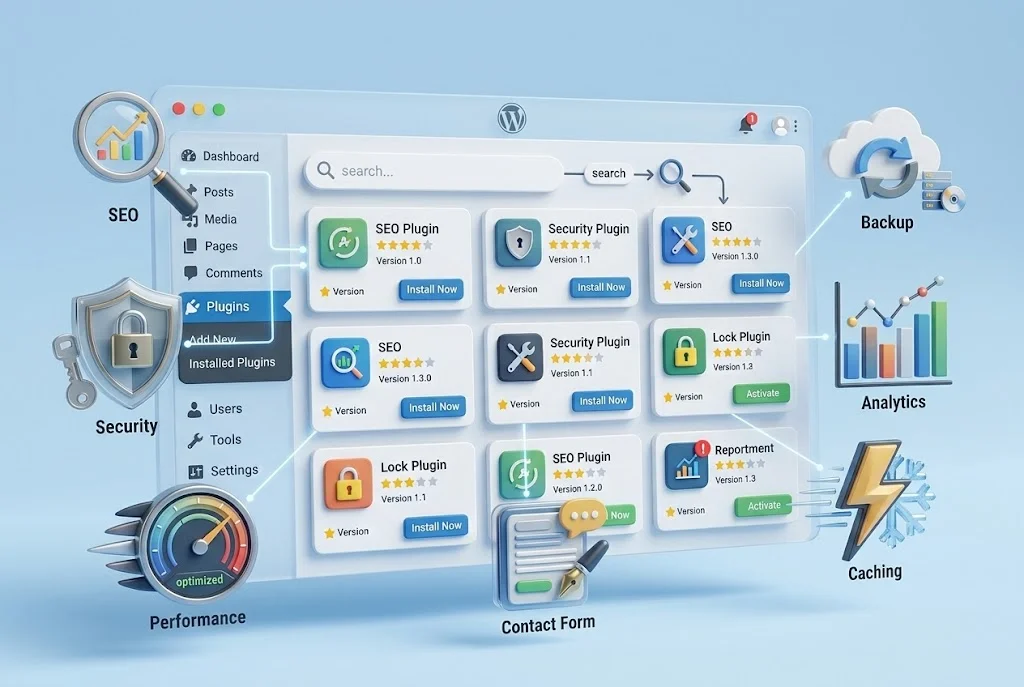
The easiest way to start is by making a list of the features your website actually needs.
Do not begin by searching for random plugins.
First, understand your website.
For example, a small business website may need an SEO plugin, contact form plugin, security solution, backup system, caching tool, and analytics integration.
A blog may need SEO, backup, security, caching, image optimization, and spam protection.
An ecommerce website may require WooCommerce, payment integrations, shipping tools, product extensions, security, backups, and performance optimization.
Once you know what your website needs, you can start searching for suitable plugins.
This problem-first approach makes plugin management much easier because every plugin has a clear purpose. Instead of installing a plugin because it looks interesting, you install it because it solves an actual website requirement.
Before installation, check the plugin’s ratings, reviews, update history, developer information, compatibility, documentation, and support options.
This small amount of research can prevent many plugin-related problems later.
Start With a WordPress SEO Plugin
Search engine optimization is important for websites that want to receive organic traffic from search engines.
A WordPress SEO plugin can provide tools that make on-page and technical SEO easier to manage. Depending on the solution you choose, an SEO plugin may help you control several important elements.
These can include:
- SEO titles
- Meta descriptions
- XML sitemaps
- Schema markup
- Canonical URLs
- Social media previews
- Robots settings
- Focus keywords
However, installing an SEO plugin does not guarantee search rankings.
SEO also depends on useful content, keyword research, website structure, internal linking, technical performance, backlinks, and user experience.
An SEO plugin should therefore be considered a tool rather than a shortcut.
When choosing an SEO solution, avoid installing multiple plugins that perform the same SEO functions. Using more than one SEO plugin for the same purpose can create conflicts and unnecessary configuration problems.
Your goal should be to create a clean SEO setup that supports your content strategy rather than making your WordPress dashboard unnecessarily complicated.
Add a Reliable WordPress Security Plugin
Website security should be part of your WordPress setup from the beginning.
WordPress websites can face automated login attempts, spam, malicious requests, vulnerable software, and other security threats.
A security plugin can provide additional protection depending on the solution you choose.
Common security features include:
- Login protection
- Firewall functionality
- Malware scanning
- Two-factor authentication
- Suspicious activity monitoring
- IP blocking
- Security notifications
But a security plugin alone cannot protect everything.
You should also keep WordPress, themes, and plugins updated. Use strong administrator passwords, restrict unnecessary user access, choose reliable hosting, and avoid downloading plugins from questionable sources.
A secure website requires several layers of protection working together.
Plugin security is also connected to plugin maintenance. An abandoned or poorly maintained plugin can create unnecessary risks, which is why update history and developer reputation are important factors when choosing WordPress plugins.
Set Up a WordPress Backup Plugin
A backup system is one of the most important parts of any WordPress website.
Imagine spending months creating pages, publishing articles, uploading images, adding products, and customizing your website. If something goes wrong and you do not have a recent backup, recovering your work can become extremely difficult.
A backup plugin can automate the process of creating copies of important website data.
Depending on the solution, backups may include:
- WordPress database
- Website files
- Media uploads
- Themes
- Plugins
- Configuration files
Automatic backups are especially useful for business and ecommerce websites because these websites may contain important customer, product, and order information.
You should also consider where your backups are stored. If every backup is stored on the same server as your website, a serious server problem could affect both the website and its backups.
For important websites, keep copies in a separate and reliable storage location.
Most importantly, test your backup restoration process occasionally. A backup is only truly useful if you can restore your website when you need it.
Use a WordPress Caching Plugin for Better Performance
Website performance can have a major impact on user experience.
When visitors open a page, they expect the content to appear quickly. A slow website can make navigation frustrating and may cause users to leave before completing an important action.
Caching plugins can improve website performance by storing certain resources so that pages can be delivered more efficiently.
Depending on your hosting environment and plugin, performance features may include:
- Page caching
- Browser caching
- CSS optimization
- JavaScript optimization
- Lazy loading
- Database optimization
- File compression
- Minification
However, do not install several caching plugins together simply because they offer similar features.
Multiple optimization systems can sometimes conflict with each other.
Choose a suitable performance solution and configure it according to your hosting environment.
Website speed also depends on hosting, images, themes, third-party scripts, fonts, databases, and other factors. Plugin optimization is only one part of the overall WordPress website optimization strategy.
Add a Contact Form Plugin
A contact form is an essential feature for many business websites.
Instead of forcing visitors to copy an email address and open another application, you can allow them to contact your business directly through the website.
A basic contact form may include:
- Name
- Email address
- Phone number
- Subject
- Message
Depending on your business, you may also need fields for service selection, appointment dates, project requirements, or budget.
When choosing a contact form plugin, look at:
- Ease of use
- Mobile responsiveness
- Spam protection
- Email delivery
- Form customization
- Integration options
Try to keep forms simple. If you ask visitors for too much information, some may decide not to complete the form.
A good contact form plugin should make communication easier without creating unnecessary complexity for visitors or website administrators.
Consider an Image Optimization Plugin
Images are an important part of modern website design, but large image files can slow down your pages.
A high-resolution photograph may look excellent, but there is little benefit in uploading a huge file if the website only displays it at a much smaller size.
Image optimization plugins can help with:
- Image compression
- WebP conversion
- Image resizing
- Lazy loading
- File optimization
You can also improve performance before uploading an image.
Resize images according to their actual use, choose appropriate file formats, and avoid uploading unnecessarily large photographs.
For example, if a blog image will be displayed at around 1200 pixels wide, there is usually no need to upload a 5000-pixel-wide image.
Good image optimization combined with caching and reliable hosting can make a noticeable difference to website performance.
Protect Your Website From Spam
If your website allows comments, contact form submissions, registrations, or reviews, spam can become a problem.
Spam submissions can fill your inbox and create unnecessary content in your website database.
An anti-spam solution can help identify and block suspicious submissions.
Depending on your website, you may need protection for:
- Comments
- Contact forms
- Registration forms
- Product reviews
- Login attempts
Choose an anti-spam solution that matches your actual requirements rather than installing several similar plugins.
The goal is to reduce unwanted activity while keeping legitimate visitors and customers able to use your website without unnecessary restrictions.
Add Analytics and Tracking Carefully
Analytics tools can help you understand how visitors interact with your website.
You may want to know:
- How many people visit your website
- Which pages receive the most traffic
- Where visitors come from
- Which devices they use
- How long they stay
- Which pages lead to conversions
Analytics can be connected to WordPress through plugins or other integration methods.
If you run advertising campaigns, you may also need tracking pixels and conversion events.
However, remember that tracking scripts can add resources to your website. Only install the tracking tools that you actually need and review them regularly.
A clean tracking setup is easier to manage and can reduce unnecessary performance overhead.
Use WooCommerce for an Online Store
Not every WordPress website needs ecommerce functionality.
If you sell physical or digital products, however, WooCommerce can turn your WordPress website into an online store.
An ecommerce website may require functionality for:
- Product management
- Product categories
- Shopping cart
- Checkout
- Payments
- Shipping
- Orders
- Customer accounts
- Coupons
- Product variations
Once you add ecommerce functionality, plugin compatibility becomes even more important.
Before installing WooCommerce extensions, check whether they work correctly with your WordPress version, WooCommerce version, theme, payment gateway, and other plugins.
A plugin that works well on one store may not necessarily behave the same way on another website.
Check Plugin Compatibility Before Installation
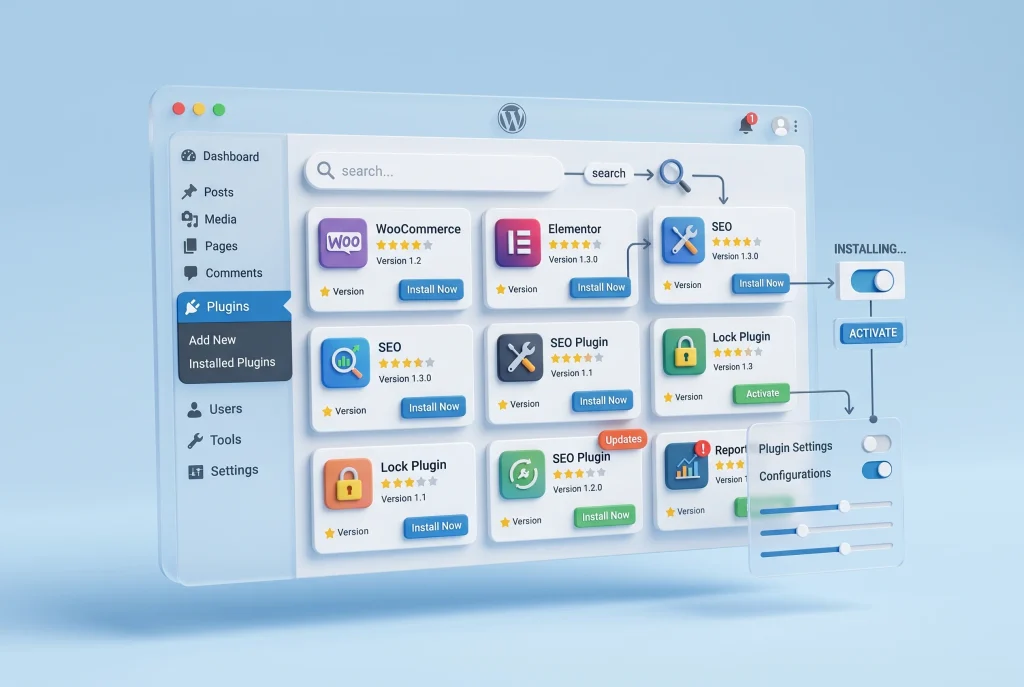
Plugin compatibility is one of the most important things beginners often overlook.
A plugin can work perfectly in one WordPress environment but cause problems in another.
Compatibility can depend on:
- WordPress version
- PHP version
- Theme
- Other plugins
- Hosting environment
- Website configuration
Before installing an important plugin, check its documentation and available support information.
Look at its update history and user reviews as well.
If you are adding a plugin to an important live website, create a backup before making the change.
For larger websites, a staging environment can be even more useful because you can test plugins before applying changes to the live site.
Testing is particularly important for ecommerce websites and business websites where plugin conflicts could affect forms, checkout, payments, or other important functions.
Do Not Install Too Many WordPress Plugins
One of the biggest mistakes beginners make is assuming that installing more plugins automatically makes a website better.
It does not.
Every plugin adds another piece of software that may need configuration, updates, compatibility checks, and maintenance.
The number of plugins is not the only thing that matters. A website with several well-maintained plugins can perform better than a website with fewer but poorly developed plugins.
Instead of asking:
“How many plugins should I install?”
Ask:
“Which plugins does my website actually need?”
That is a much better approach to plugin management.
Remove plugins that are no longer necessary and avoid installing two plugins that perform essentially the same function.
Avoid Plugins From Untrusted Sources
Where you download a plugin matters.
Avoid installing premium plugins from suspicious websites simply because someone is offering them for free.
Unauthorized or modified plugin files can introduce security and maintenance problems.
Whenever possible, use reputable sources and established developers.
Before installing a plugin, check:
- Developer information
- Reviews
- Update history
- Documentation
- Support
- Compatibility
- User adoption
These factors do not guarantee that a plugin is perfect, but they can help you make a more informed decision.
A trustworthy source and an actively maintained plugin can make your website easier to manage over the long term.
Keep WordPress Plugins Updated
Installing a plugin is not the end of the process.
Plugins require ongoing maintenance because developers release updates to fix bugs, improve features, increase compatibility, and address security issues.
Check your WordPress dashboard regularly for available updates.
For an important business website, make sure you have a recent backup before making major changes.
If your website is large or generates significant revenue, consider testing updates on a staging website first.
This allows you to identify conflicts before they affect your live website.
Regular plugin updates are therefore an important part of WordPress website maintenance.
Remove Plugins You No Longer Need
If you have stopped using a plugin, consider removing it instead of leaving it installed indefinitely.
An unused plugin may not provide any value while still becoming another item that needs to be monitored and updated.
Review your plugin list from time to time.
Ask:
- Do I still need this plugin?
- Is another plugin already providing the same feature?
- Is the plugin still maintained?
- Is it affecting performance?
- Is there a simpler solution?
Keeping your plugin list organized makes website maintenance easier.
It also helps reduce unnecessary software and makes it easier to identify the cause of problems when something changes on your website.
Test Your Website After Installing a Plugin
After installing a new plugin, do not assume that everything is working simply because the activation process was successful.
Visit the website and test important areas.
Depending on your website, check:
- Homepage
- Navigation
- Contact forms
- Login
- Blog
- Product pages
- Shopping cart
- Checkout
- Mobile layout
If something stops working immediately after installing a plugin, there is a possibility that the new plugin has created a conflict.
This is another reason why installing plugins one at a time can make troubleshooting easier.
Testing also allows you to identify performance changes, layout problems, broken forms, JavaScript issues, or other unexpected behavior before visitors discover them.
Think About Performance Before Adding New Features
Every additional website feature has some technical cost.
A popup, slider, animation, social media feed, tracking script, product filter, form builder, or third-party integration may add additional resources.
This does not mean you should avoid useful features.
Instead, consider whether each feature provides enough value to justify its effect on the website.
Good WordPress website optimization is about balance.
Your goal should be to create a website that provides the functionality visitors need without loading unnecessary resources.
A useful plugin that solves an important problem can be worth adding. A plugin that adds a feature nobody uses may only increase maintenance requirements.
Use Plugins to Solve Problems
One of the simplest rules for managing plugins is to install them because you have a specific problem to solve.
For example:
Problem: Visitors cannot contact the business.
Solution: Contact form plugin.
Problem: The website has no automated backup system.
Solution: Backup plugin.
Problem: Pages need additional SEO controls.
Solution: SEO plugin.
Problem: Website performance needs improvement.
Solution: Appropriate caching and optimization tools.
This approach prevents your WordPress dashboard from becoming filled with plugins that you rarely use.
It also makes future maintenance easier because every plugin has a clear purpose.
WordPress Plugin Essentials for Different Website Types
There is no universal plugin package that every website needs.
Your requirements depend on what your website does.
Business Websites
A typical business website may need:
- SEO plugin
- Security solution
- Backup plugin
- Contact form
- Caching solution
- Analytics integration
Blogs
A blog may benefit from:
- SEO plugin
- Backup system
- Security plugin
- Caching tool
- Image optimization
- Anti-spam protection
Ecommerce Websites
An online store may require:
- WooCommerce
- Payment gateway
- SEO tools
- Security solution
- Backup plugin
- Performance optimization
- Product extensions
Portfolio Websites
A portfolio website may need:
- SEO
- Image optimization
- Contact forms
- Backup
- Caching
- Security
This is why WordPress Plugin Essentials should be treated as a flexible concept rather than a fixed list.
The essential plugins for one website may be completely unnecessary for another.
How to Choose a Reliable WordPress Plugin
Before installing a plugin, spend a few minutes checking its quality.
First, look at the plugin’s update history. An actively maintained plugin is generally easier to work with over time.
Next, read user reviews. Look for recurring complaints about compatibility, support, performance, or bugs.
Also check whether documentation is available.
A plugin with clear documentation can save you considerable time when configuring its settings.
You should also consider whether the developer provides support.
For a plugin that controls an important business function, reliable support can be especially valuable.
Finally, check whether the plugin is compatible with your WordPress environment.
Taking these steps before plugin installation can help you avoid unnecessary problems later.
A Simple WordPress Plugin Checklist
Before installing a new plugin, ask yourself the following questions.
Do I actually need it?
If the feature is unnecessary, do not install another plugin simply because it looks interesting.
Is the plugin trustworthy?
Check its developer, reviews, update history, and documentation.
Is it compatible?
Make sure it works with your WordPress version, theme, and other important plugins.
Is it maintained?
Avoid relying on software that has not been updated for a long time without a clear reason.
Will it affect performance?
Consider whether the plugin adds unnecessary scripts, database queries, or external resources.
Does another plugin already provide this function?
Avoid duplicate functionality.
Do I have a backup?
For important websites, create a recent backup before making significant changes.
These simple checks can prevent many plugin-related problems.
When Do You Need Professional WordPress Help?
Many basic plugin tasks can be completed by beginners.
However, professional assistance can become valuable when a website has complex requirements.
You may need help with:
- Plugin customization
- Plugin conflicts
- WooCommerce development
- Website performance
- Security configuration
- Plugin migration
- Custom functionality
- API integrations
- Website redesign
- WordPress maintenance
A professional developer can also review an existing plugin setup and identify unnecessary or overlapping plugins.
Sometimes the best way to improve a website is not to add another plugin but to remove the plugins that are creating unnecessary complexity.
Professional WordPress development can also be useful when a plugin needs custom integration with another service or when a website requires functionality that cannot be achieved efficiently through existing plugins.
Final Thoughts on WordPress Plugin Essentials
Understanding WordPress Plugin Essentials gives you a better foundation for managing a WordPress website.
Plugins are powerful because they allow you to extend WordPress without developing every feature from scratch. But that flexibility needs to be used carefully.
Start by identifying what your website actually needs. Then choose reliable plugins that solve those specific problems.
For most websites, important areas include SEO, security, backups, performance, contact forms, spam protection, image optimization, and analytics. Ecommerce websites may require additional functionality through WooCommerce and related extensions.
Always check plugin compatibility, update history, documentation, support, and performance before installing a new tool.
Keep your plugins updated, maintain regular backups, and remove plugins that you no longer need.
Most importantly, do not judge a website by how many plugins it has installed.
A clean and carefully managed WordPress setup is usually much easier to maintain than a website filled with unnecessary features.
That is the real purpose of WordPress Plugin Essentials: not simply installing more plugins, but choosing the right tools, configuring them correctly, and maintaining a WordPress website that remains secure, fast, functional, and easy to manage.