
Subtotal ₨ 0
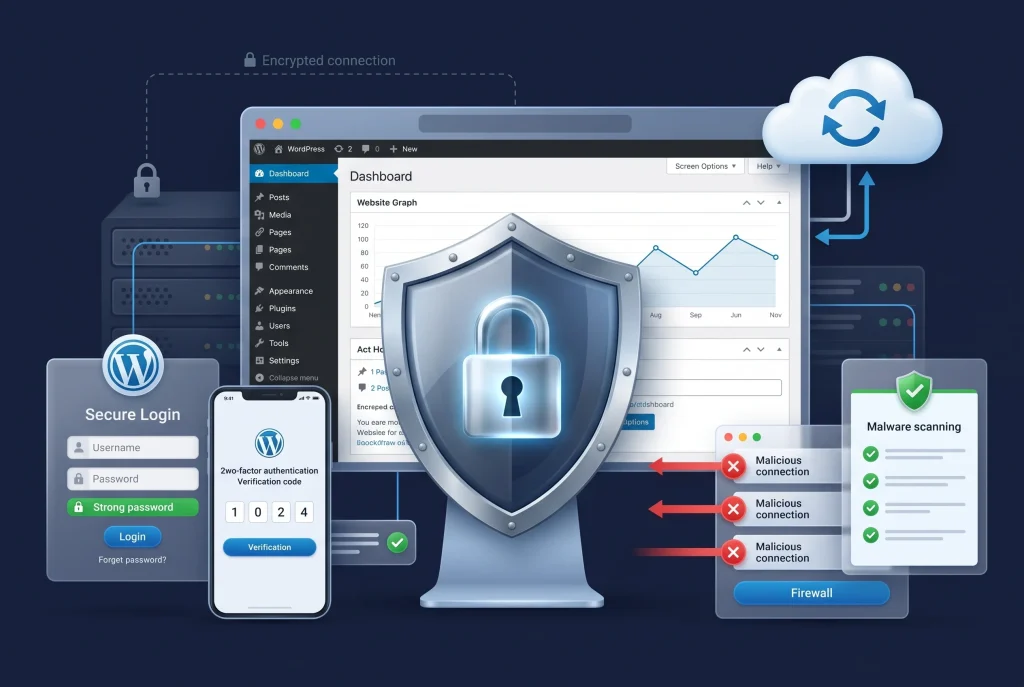
Website security should be a priority for every website owner, whether you run a personal blog, business website, online store, portfolio, or membership platform. A WordPress security checklist gives you a practical way to identify common security weaknesses and protect your website against threats such as malware, brute-force attacks, unauthorized access, outdated software, and suspicious activity.
WordPress is one of the most widely used website platforms in the world, which also makes WordPress websites attractive targets for attackers. The good news is that you do not need to be a cybersecurity expert to improve your website security. By following a structured WordPress security checklist and applying basic security practices consistently, you can significantly reduce unnecessary risks.
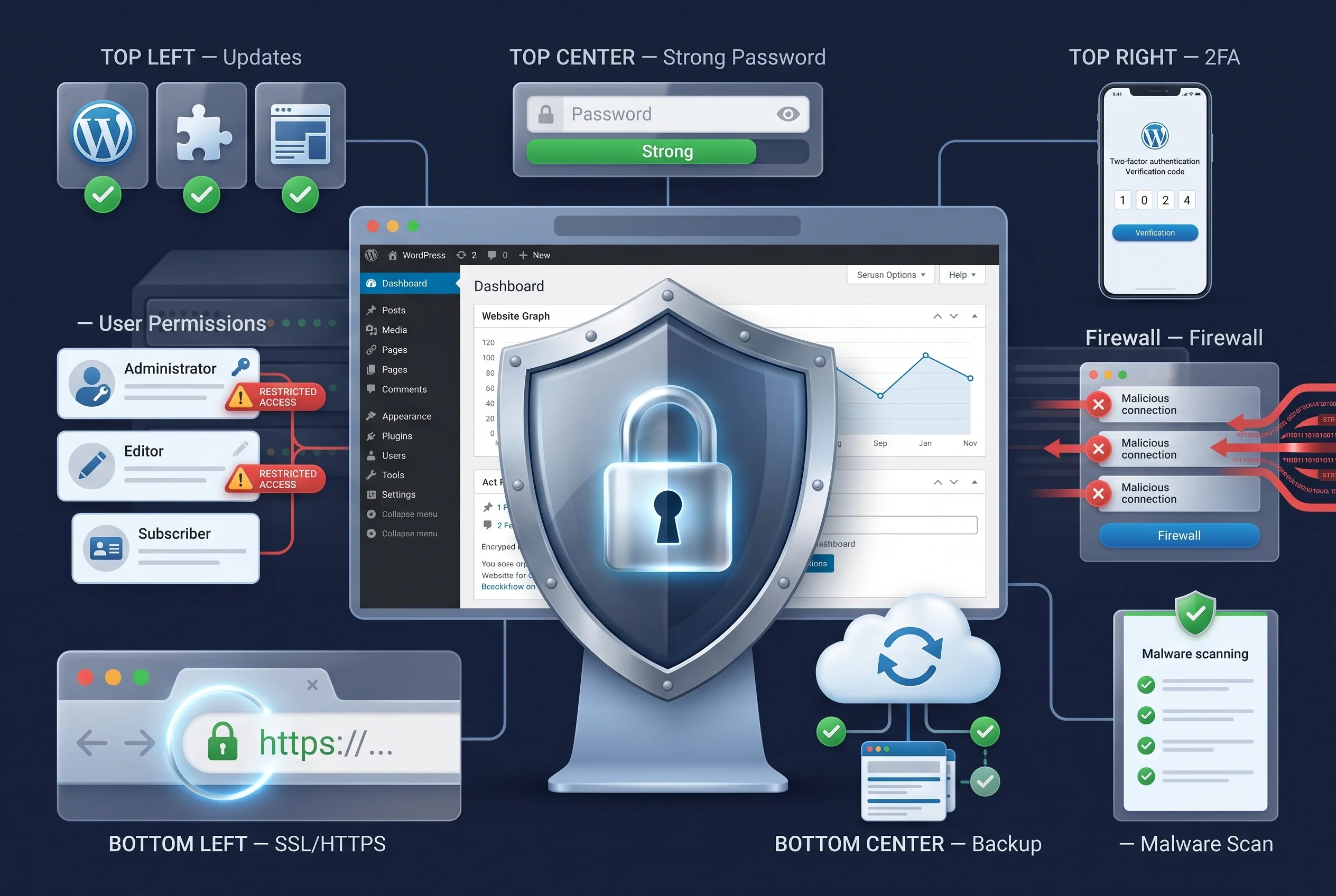
This guide covers the most important WordPress security measures, from strong passwords and software updates to backups, login protection, SSL certificates, malware monitoring, secure hosting, and user permissions.
Why a WordPress Security Checklist Matters
Website security is not something you should think about only after your website has been hacked. Security works best when it is treated as an ongoing process.
A checklist helps you avoid forgetting important tasks. It also makes it easier to review your website regularly and identify areas that need improvement.
A secure WordPress website should protect several important areas, including:
- WordPress core files
- Themes and plugins
- Administrator accounts
- User passwords
- Website database
- Login pages
- Uploaded files
- Hosting environment
- Website backups
- Customer information
- Payment-related information
- Personal data
Even a small blog can become a target if it contains outdated software or weak login credentials.
The Essential WordPress Security Checklist
The following security measures can help create a stronger foundation for your WordPress website.
1. Keep WordPress Updated
One of the simplest security practices is keeping WordPress up to date.
WordPress releases updates that can include security fixes, bug fixes, performance improvements, and other improvements. Running an outdated version can leave known vulnerabilities unpatched.
You should regularly check for updates to:
- WordPress core
- Plugins
- Themes
- PHP
- Other server software
Before performing major updates, create a fresh backup of your website.
Automatic updates can be useful for certain websites, but you should still monitor your website after updates to make sure everything continues working correctly.
2. Update Plugins and Themes
Plugins and themes extend WordPress functionality, but outdated software can create security risks.
A plugin that has not been updated for a long time may contain vulnerabilities that attackers can exploit.
Review your installed plugins regularly and remove anything you no longer need.
Do not keep a plugin installed simply because you might use it someday. If it is unnecessary, removing it can reduce your website’s attack surface.
The same principle applies to WordPress themes.
Keep your active theme updated and remove unused themes where appropriate.
3. Use Strong and Unique Passwords
Weak passwords are one of the easiest ways for attackers to gain unauthorized access.
Avoid passwords based on:
- Your name
- Website name
- Birthday
- Phone number
- Simple words
- Common password patterns
Use long, unique passwords for WordPress administrator accounts.
A password manager can help you generate and securely store complex passwords without requiring you to memorize every one.
Importantly, do not reuse your WordPress administrator password on other websites.
4. Enable Two-Factor Authentication
Two-factor authentication, commonly called 2FA, adds another layer of protection to your login process.
Instead of relying only on a username and password, 2FA requires an additional verification method.
Depending on the security solution, this could involve:
- Authentication apps
- One-time verification codes
- Security keys
- Other authentication methods
Even if someone obtains your password, an additional authentication step can make unauthorized access more difficult.
For administrator and other privileged accounts, two-factor authentication is especially valuable.
5. Limit Administrator Accounts
Not everyone working on your website needs administrator privileges.
The WordPress user role system allows you to assign different levels of access.
Common roles include:
- Administrator
- Editor
- Author
- Contributor
- Subscriber
Give users only the permissions they actually need.
For example, someone who only writes blog posts generally does not need complete administrative access to plugins, themes, settings, and users.
This principle is known as least privilege.
Reducing unnecessary administrator accounts can help limit the damage if one account becomes compromised.
6. Protect Your WordPress Login Page
The WordPress login page is a common target for automated attacks.
Attackers may use automated systems to repeatedly attempt different username and password combinations.
Login protection can include:
- Strong passwords
- Two-factor authentication
- Login attempt limits
- CAPTCHA or anti-bot protection
- Security monitoring
- IP-based protection where appropriate
Avoid relying on a single security feature.
A combination of authentication and monitoring measures generally provides stronger protection.
7. Use an SSL Certificate
An SSL certificate enables HTTPS and encrypts data transferred between the visitor’s browser and your website.
You can confirm that your website uses HTTPS by checking whether the address begins with https://.
HTTPS is particularly important when visitors submit:
- Login credentials
- Contact information
- Account details
- Payment information
- Other sensitive data
Modern browsers also warn users when websites do not use secure connections appropriately.
Make sure your SSL certificate is correctly installed and configured across your entire website.
8. Choose Secure WordPress Hosting
Your hosting provider is an important part of your website security strategy.
A reliable WordPress hosting environment can provide security features such as:
- Server-level protection
- Malware monitoring
- Firewalls
- Automated backups
- Secure server configuration
- Regular software updates
- Account isolation
- DDoS protection
Cheap hosting is not automatically insecure, but you should understand what security features are included before choosing a hosting provider.
If your website handles business data, customer information, or online transactions, investing in a reliable hosting environment is especially important.
9. Create Regular Website Backups
A backup is one of the most important safety nets for a WordPress website.
If your website is hacked, damaged, or accidentally modified, a recent backup can help you restore it.
Your backup strategy should ideally include both:
- Website files
- WordPress database
Do not assume that your hosting provider’s backup system is enough. Understand how frequently backups are created, how long they are retained, and how restoration works.
It is also useful to keep backups in a separate location rather than storing every copy on the same server as your website.
Test Your Backups
Creating backups is not enough.
You should occasionally verify that your backups can actually be restored.
A backup that cannot be restored when needed does not provide much practical protection.
10. Install a Reputable Security Plugin
A reputable WordPress security plugin can provide several security features from one interface.
Depending on the solution, security plugins may provide:
- Malware scanning
- Login protection
- Firewall functionality
- File integrity monitoring
- Suspicious activity detection
- Brute-force protection
- Security notifications
However, avoid installing several security plugins that perform the same tasks.
Multiple overlapping security systems can create conflicts, unnecessary resource usage, and confusing settings.
Choose a reputable solution and configure it carefully.
11. Scan Your Website for Malware
Regular malware scanning can help identify suspicious files or other unusual activity.
Signs of a potentially compromised website can include:
- Unexpected redirects
- Unknown administrator accounts
- Suspicious files
- Unusual website behavior
- Unexpected popups
- Spam pages
- Changes to website content
- Unrecognized plugin or theme modifications
If you notice unusual activity, do not simply delete random files.
First create a backup and investigate the source of the problem carefully.
For serious compromises, professional malware cleanup or security assistance may be appropriate.
12. Remove Unused Plugins and Themes
Every installed plugin or theme adds another component to your website.
If you are no longer using something, remove it instead of leaving it installed indefinitely.
Before removing anything, confirm that your website does not depend on it.
Unused software can increase maintenance requirements and may become a security concern if it remains outdated.
A clean WordPress installation is generally easier to maintain and monitor.
13. Use a Web Application Firewall
A Web Application Firewall, or WAF, can help filter and block certain malicious requests before they reach your website.
Depending on the configuration, a WAF can help protect against different types of suspicious traffic and common web attacks.
A firewall should be considered one layer of a broader security strategy rather than a complete solution.
You should still maintain strong passwords, updates, backups, secure hosting, and access controls.
14. Protect the WordPress Database
The WordPress database stores important website information.
Depending on your website, this may include:
- Posts
- Pages
- User accounts
- Settings
- Comments
- Plugin data
- Other website information
Use secure database credentials and follow your hosting provider’s recommended security practices.
Avoid exposing database credentials publicly or placing sensitive configuration information where unauthorized users could access it.
15. Secure the wp-config.php File
The wp-config.php file contains important WordPress configuration information, including database connection details.
Because this file can contain sensitive information, it should be protected appropriately.
Your hosting environment and WordPress configuration should prevent visitors from directly downloading the file.
Before making server-level changes, create a backup and make sure you understand the configuration you are changing.
Incorrect server configuration can break your website.
16. Keep PHP Updated
WordPress depends on PHP, so the PHP version running on your server matters for both security and performance.
Older PHP versions may eventually stop receiving security support.
Use a currently supported PHP version that is compatible with your WordPress installation, theme, and plugins.
Before changing PHP versions on a production website, test compatibility whenever possible.
This is especially important for older websites with legacy plugins or themes.
17. Be Careful With WordPress Plugins and Themes
Only download WordPress themes and plugins from trustworthy sources.
Avoid pirated or “nulled” themes and plugins.
These files may contain malicious code, hidden backdoors, unauthorized scripts, or other security problems.
Saving money on a premium plugin is not worth risking your entire website.
Use legitimate software from reputable developers and keep it updated.
18. Monitor User Activity
Activity monitoring can help you understand what is happening on your website.
Depending on your setup, you may want to monitor:
- Login attempts
- Successful logins
- Failed logins
- Plugin changes
- Theme changes
- User creation
- Password changes
- Content modifications
- Administrative actions
Monitoring can make it easier to detect suspicious activity early.
If several failed login attempts or unexpected administrative changes appear suddenly, investigate them rather than ignoring them.
19. Protect Against Brute-Force Attacks
Brute-force attacks involve repeatedly attempting login credentials until an account is compromised.
You can reduce this risk through multiple layers of protection.
Consider using:
- Strong unique passwords
- Two-factor authentication
- Login attempt limits
- CAPTCHA or bot protection
- Security monitoring
- Web application firewall protection
Never rely only on changing the WordPress login URL. Additional authentication and access controls are still important.
20. Keep Your Website Environment Clean
Website security is easier when your WordPress installation is organized.
Regularly review:
- Installed plugins
- Installed themes
- User accounts
- Administrator accounts
- Old files
- Unused media
- Database entries
- External integrations
Remove anything you no longer need.
This reduces unnecessary complexity and makes it easier to identify suspicious changes.
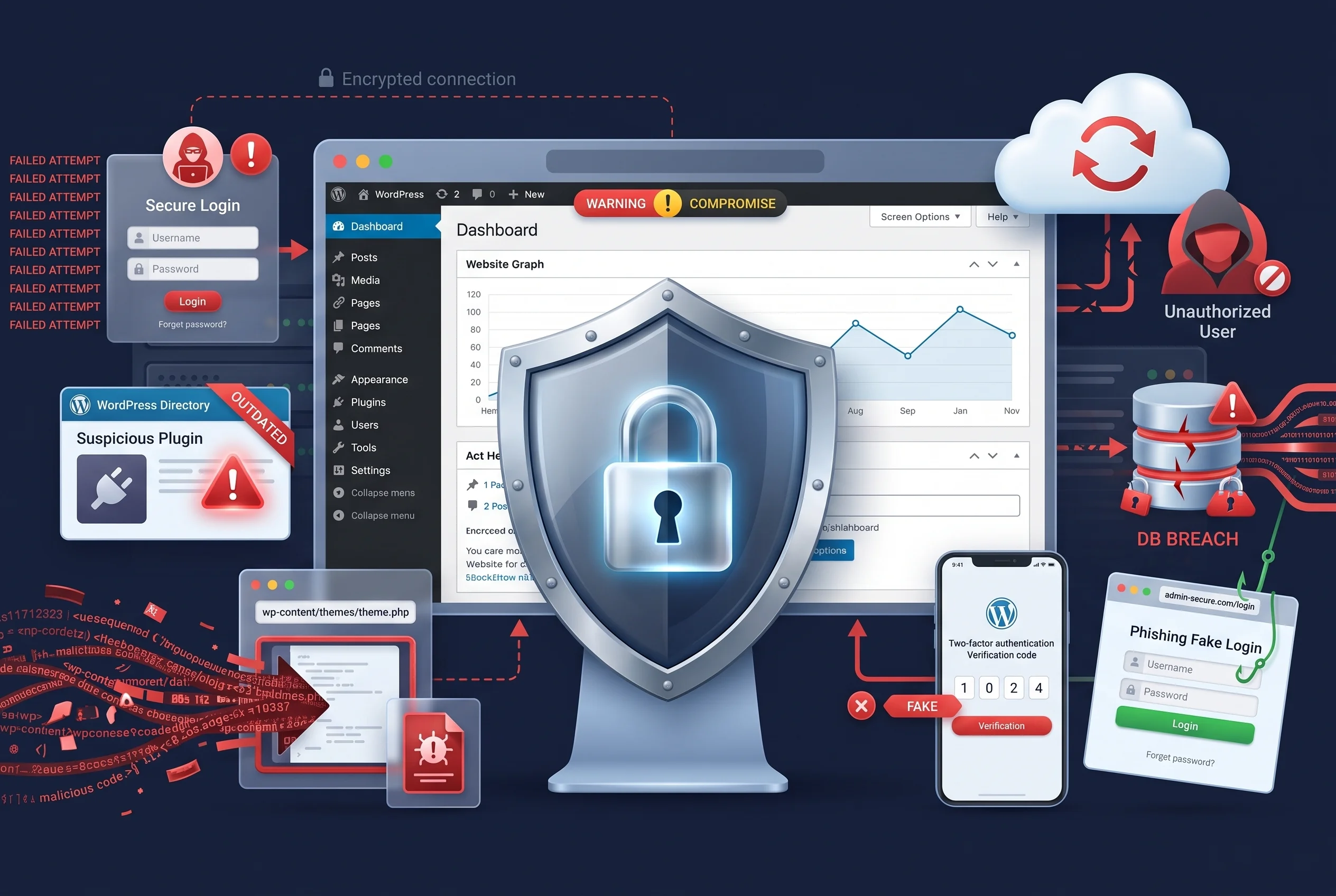
WordPress Security Checklist for Ecommerce Websites
Online stores require additional attention because they can handle customer accounts, orders, addresses, payment-related information, and other sensitive data.
If you operate a WooCommerce or similar ecommerce website, pay special attention to:
- HTTPS
- Secure payment gateways
- Strong administrator accounts
- Two-factor authentication
- Regular backups
- Plugin updates
- Secure hosting
- Malware monitoring
- User permissions
- Database security
Do not store sensitive payment information yourself unless you fully understand the security and compliance requirements involved.
Use reputable payment providers and follow their recommended security practices.
Common WordPress Security Mistakes to Avoid
Even website owners who care about security can make simple mistakes.
Using One Password Everywhere
If the same password is used across multiple services, one compromised account can put other accounts at risk.
Use unique passwords.
Ignoring Updates
Leaving plugins or themes outdated for months increases unnecessary security exposure.
Check updates regularly.
Installing Nulled Plugins
Pirated software can introduce malicious code and hidden vulnerabilities.
Use legitimate software.
Never Testing Backups
A backup strategy should include restoration testing.
Make sure your backup process actually works.
Giving Everyone Administrator Access
Only trusted users who genuinely need administrative permissions should have them.
Use appropriate WordPress roles.
Installing Too Many Security Plugins
More plugins do not automatically equal better security.
Use a carefully selected security stack instead.
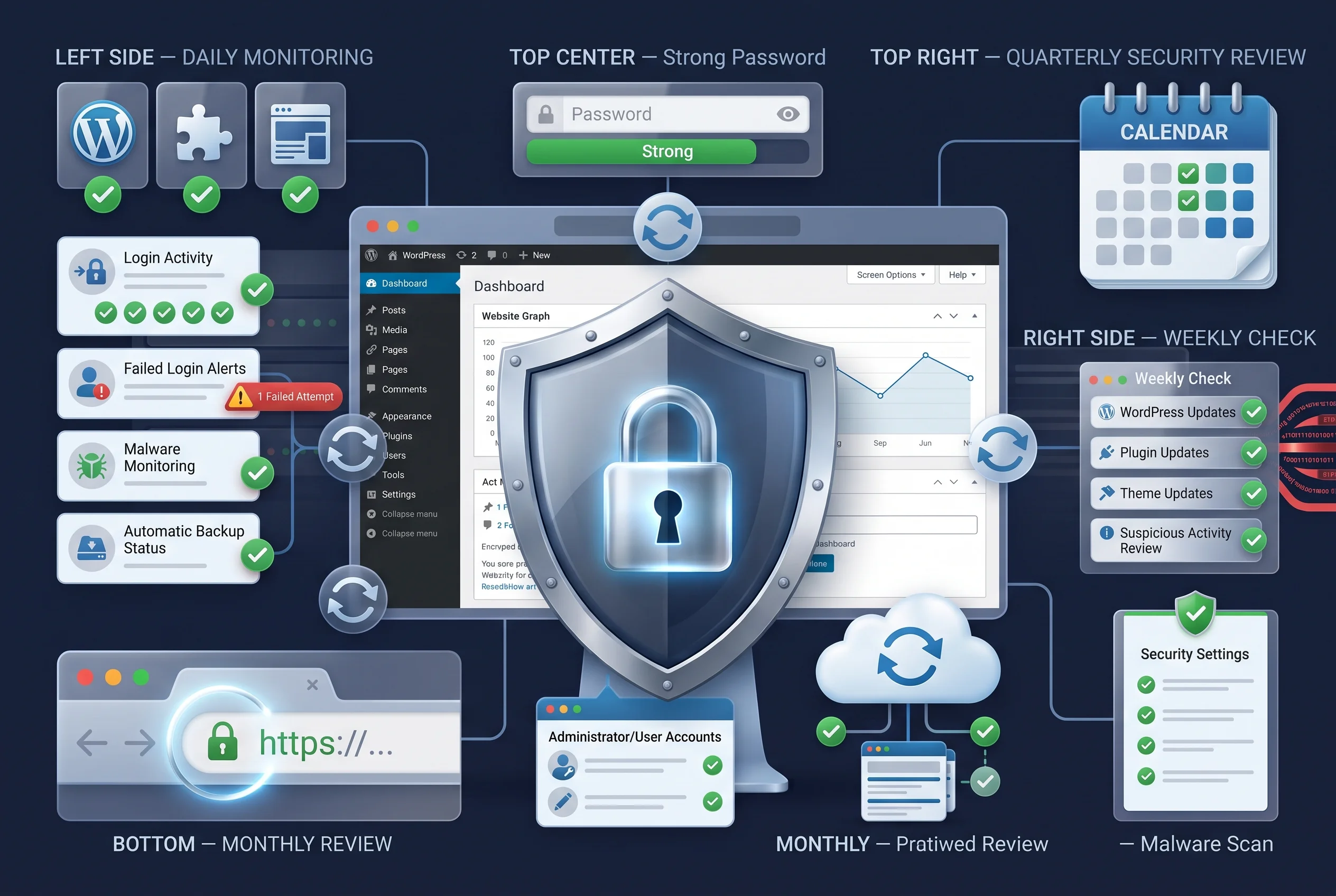
How Often Should You Check WordPress Security?
Security should be monitored continuously, but different tasks can be performed at different intervals.
Daily or Automated Monitoring
Use automated tools for:
- Malware monitoring
- Login alerts
- Backup processes
- Security notifications
Weekly
Review:
- WordPress updates
- Plugin updates
- Theme updates
- Suspicious activity
- Failed login attempts
Monthly
Review:
- User accounts
- Administrator permissions
- Installed plugins
- Installed themes
- Backup restoration process
- Security configuration
Quarterly
Perform a more comprehensive security review.
Look at hosting security, software versions, access permissions, backups, unused components, and any new services added to the website.
A Simple WordPress Security Checklist
Use the following checklist as a quick reference:
- Keep WordPress updated
- Update plugins and themes
- Remove unused plugins
- Remove unused themes
- Use strong unique passwords
- Enable two-factor authentication
- Limit administrator accounts
- Use HTTPS
- Choose reliable hosting
- Create regular backups
- Test backup restoration
- Use a reputable security plugin
- Scan for malware
- Use firewall protection
- Protect database credentials
- Keep PHP updated
- Avoid pirated plugins and themes
- Monitor user activity
- Protect against brute-force attacks
- Review security settings regularly
You can save this checklist and use it as part of your regular WordPress maintenance routine.
Final Thoughts
A strong website security strategy does not depend on one plugin or one setting. It comes from combining multiple layers of protection and maintaining them consistently.
Following a WordPress security checklist can help you identify weak passwords, outdated software, unnecessary administrator accounts, insecure plugins, missing backups, and other common risks.
Start with the basics: keep WordPress updated, use strong authentication, enable HTTPS, maintain reliable backups, remove unnecessary software, and choose secure hosting. Then add additional protection such as malware scanning, firewall rules, login monitoring, and two-factor authentication.
Most importantly, do not wait until your website is compromised before taking security seriously. Regular maintenance and proactive monitoring can help you keep your WordPress website safer, more reliable, and easier to manage over time.